Finding specific customers in your list is now easier with Bumpa’s Customer Filter feature. You can narrow down your customer list using details such as country, teleco or gender, making it easier to find the records you need without scrolling through your entire list. In this guide, we'll show you how to filter your customers and clear your filters when you're done.
Open the customer filter
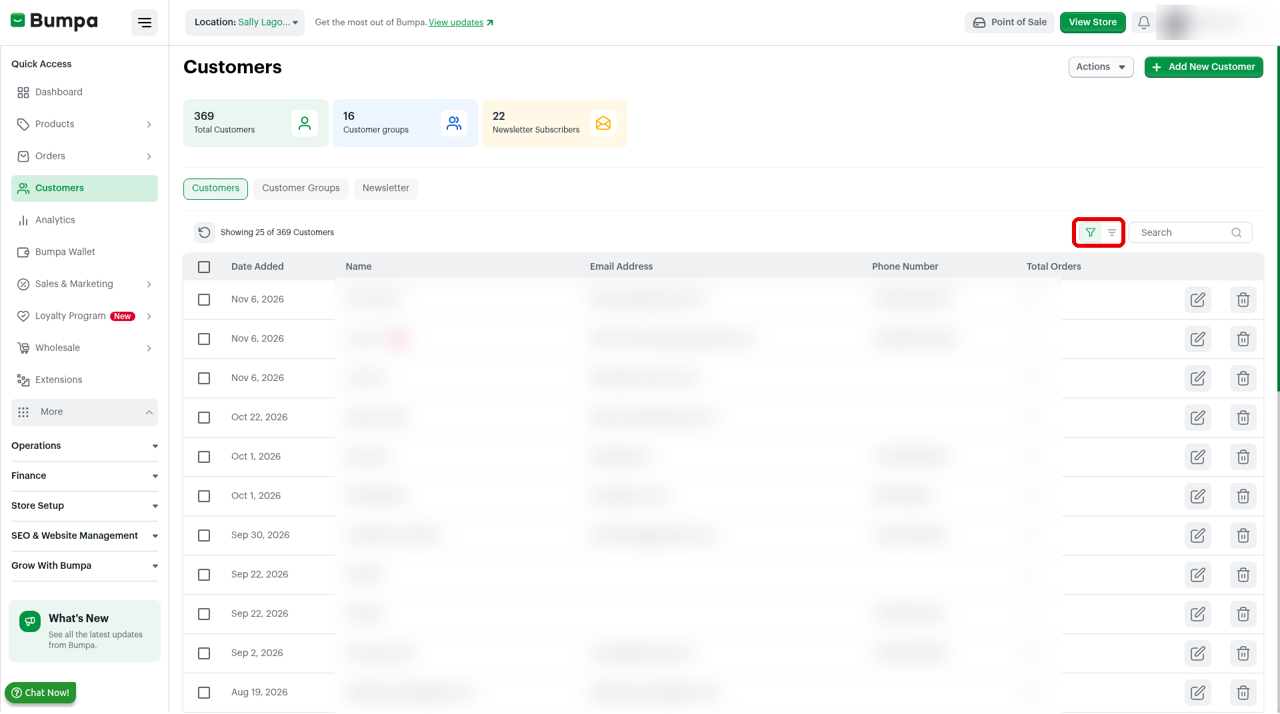
The filter icon is on the Customers tab, next to the Search box.
To open the customer filter, follow these steps:
Log in to your Bumpa dashboard via app.getbumpa.com
Click Customers.
Click the filter icon next to the Search box.
Filter options
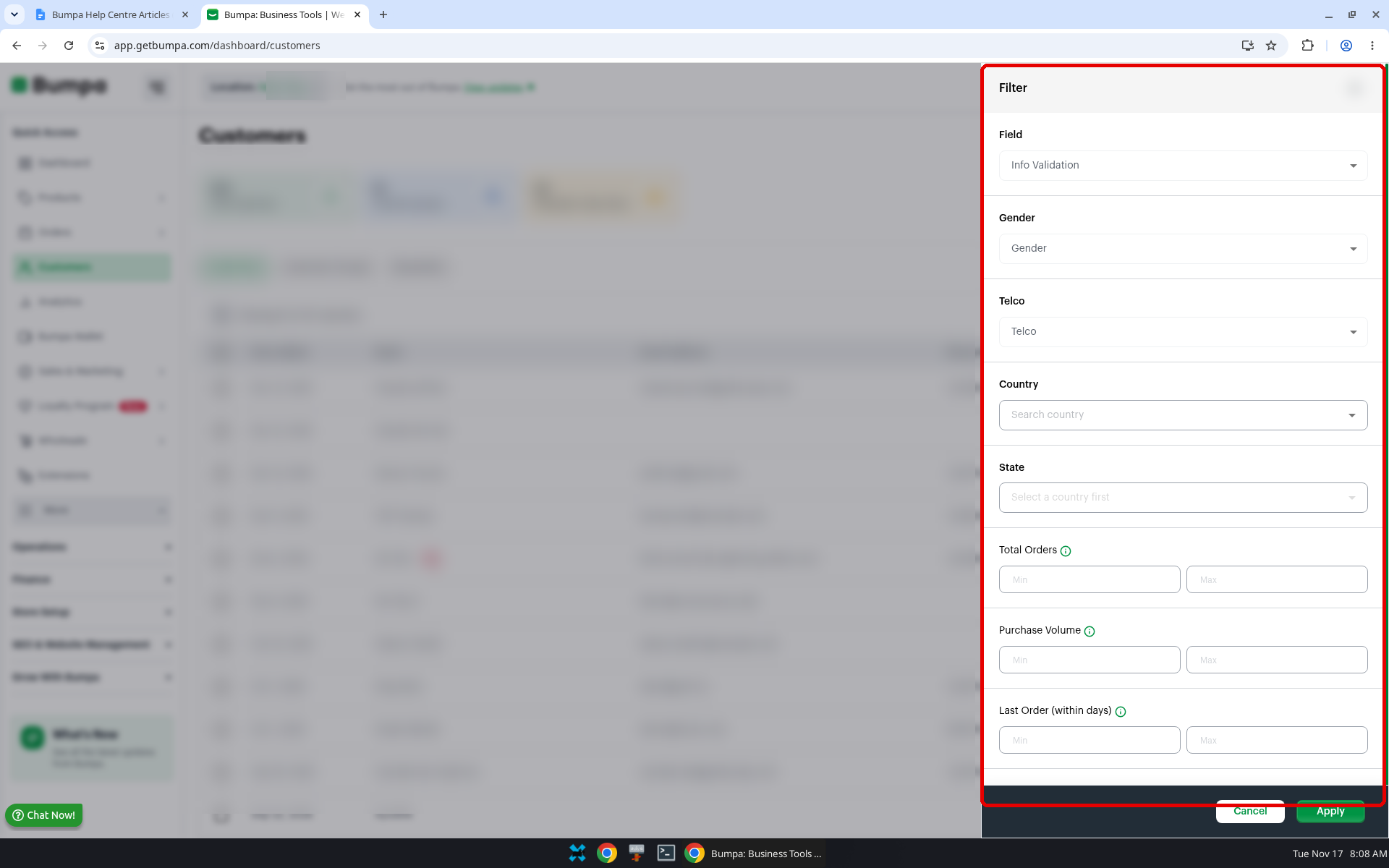
Field
The first filter is labelled Field. It shows Info Validation. You can choose Correct Email Address, Correct Phone Number, Incorrect Email Address, or Incorrect Phone Number. This helps you find contacts to fix, or contacts that are ready to message.
Gender
Gender lets you choose Male, Female, Other or Unspecified.
Telco
Telco lets you choose 9Mobile, Airtel, MTN or Glo. This helps you reach customers on one network.
Country and State
Country is searchable. State stays off until you choose a country. While it is off, the State field says "Select a country first".
Total Orders and Purchase Volume
Total Orders and Purchase Volume each have a Min field and a Max field. Use them to find customers by how many times they have ordered, or by how much they have spent.
Last Order (within days)
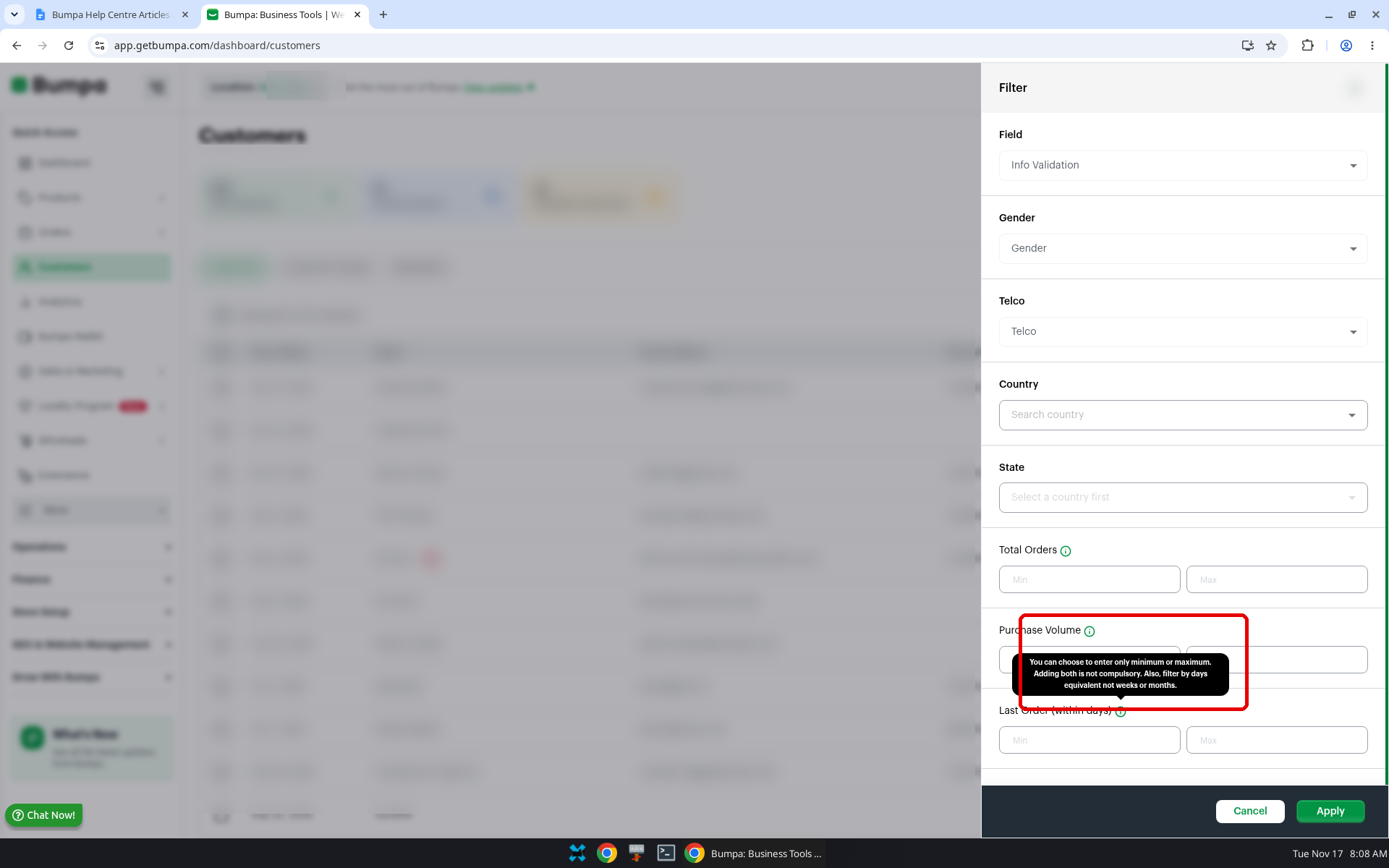
Last Order (within days) also has Min and Max. The tooltip says: "You can choose to enter only minimum or maximum. Adding both is not compulsory. Also, filter by days equivalent not weeks or months."
Choose your filters and apply them
Choose one filter, or more than one, in the Filter drawer. The filters are Field, Gender, Telco, Country, State, Total Orders, Purchase Volume, and Last Order (within days).
Click the green information icon next to Last Order (within days) if you want to read the tooltip. You can enter only a minimum, only a maximum, or both, and the values are in days, not weeks or months.
Click Apply to use the filters. Click Clear to remove what you entered in the drawer, or Cancel to close the drawer without applying.
Note: State stays off until you select a country. The State field says "Select a country first" until then.
See and clear your filters
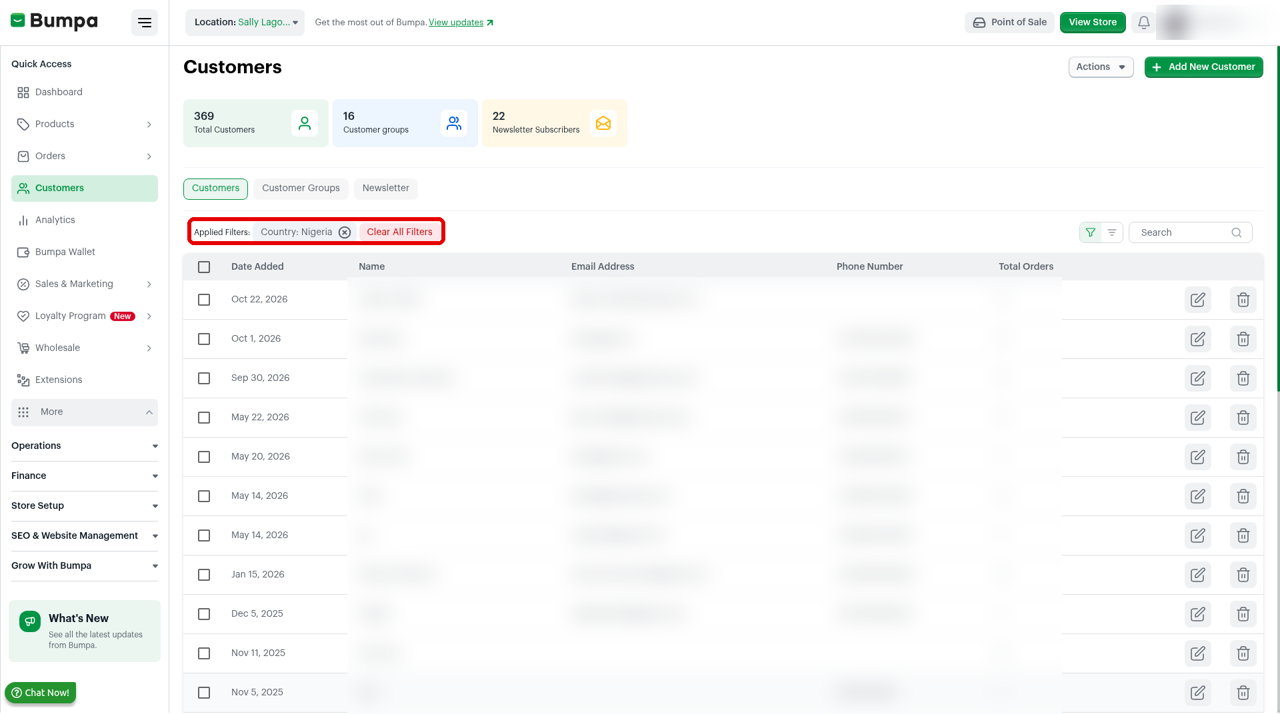
After you click Apply, your filters show next to Applied Filters, above the customer list. The list shows only the customers that match.
To clear your filters, follow these steps:
Click the x next to a filter to remove that filter.
Click Clear All Filters to remove all your filters.
Was this article helpful?
That’s Great!
Thank you for your feedback
Sorry! We couldn't be helpful
Thank you for your feedback
Feedback sent
We appreciate your effort and will try to fix the article