The Campaign feature is a great way to keep in touch with your customers and give your customers a sense of belonging to your brand or business. It also allows you to share relevant updates and information with your customers like upcoming sales etc.
This article covers how to send bulk SMS to your customers.
- Access the web app - app.getbumpa.com
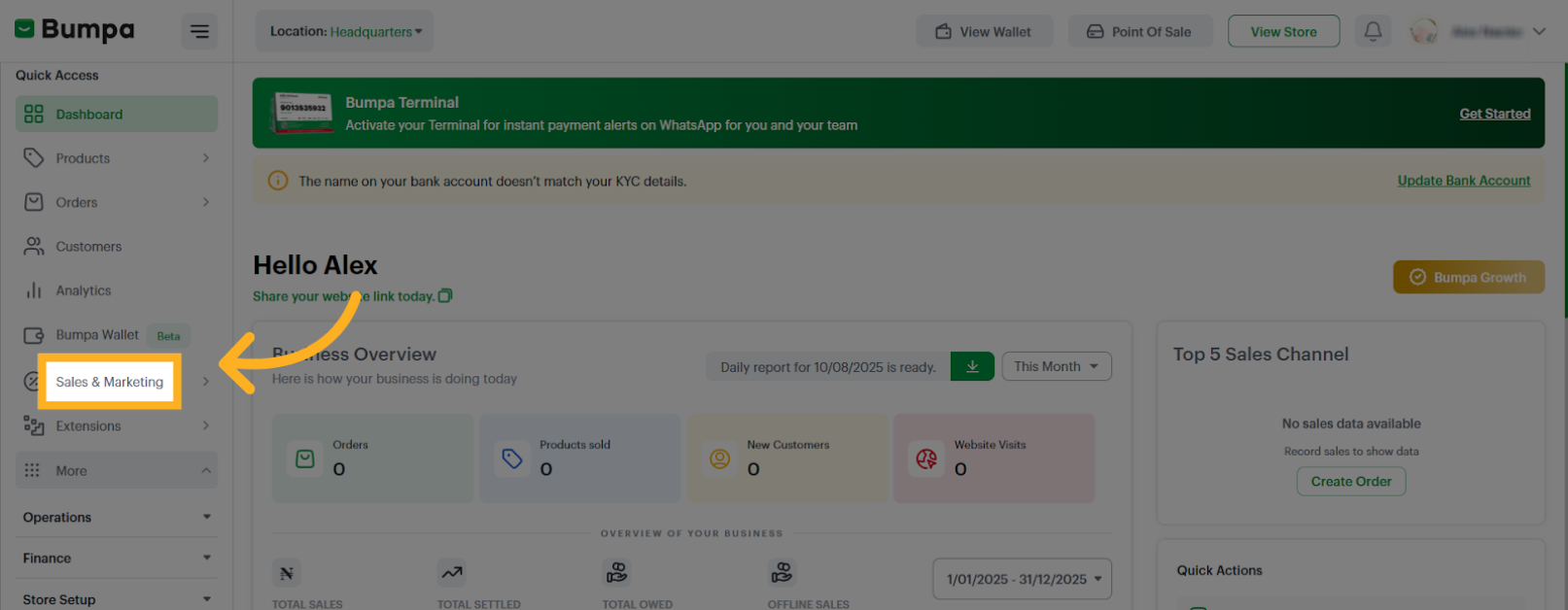
- Navigate to Sales & Marketing
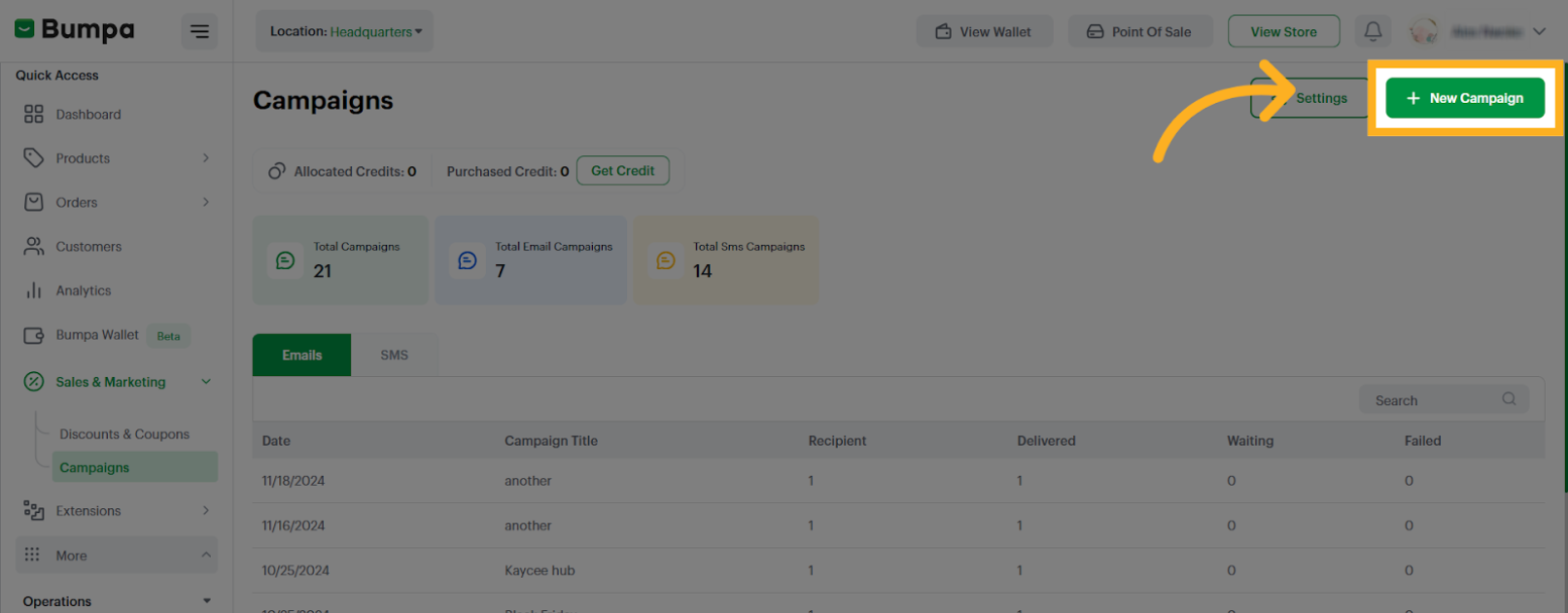
- Click on New Campaign
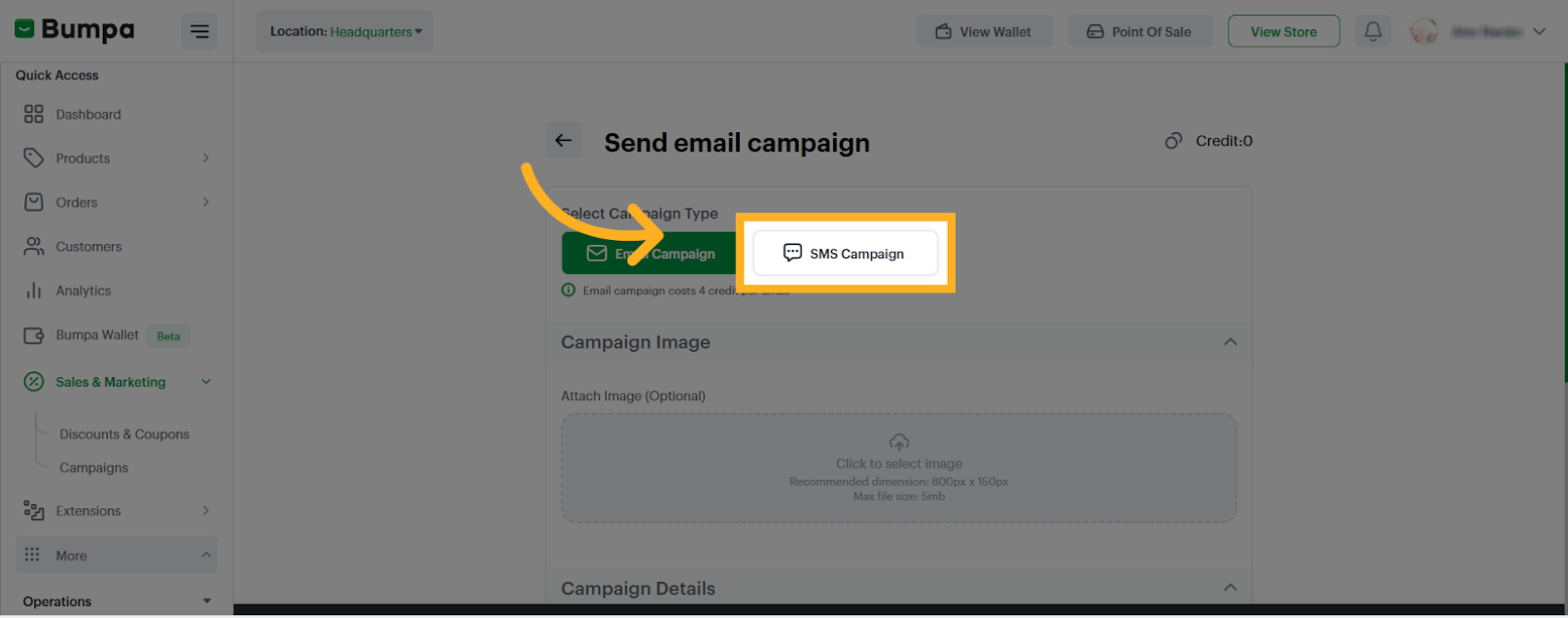
- Select SMS Campaign
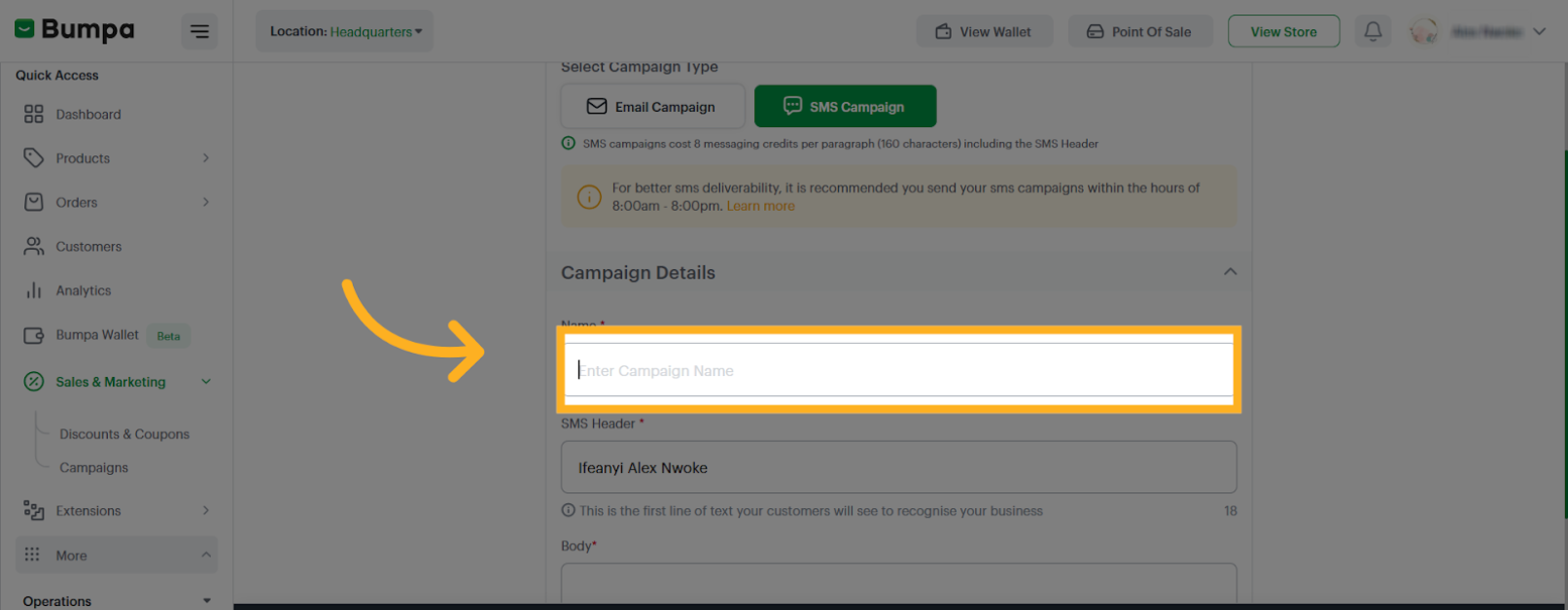
- Input the Campaign Name
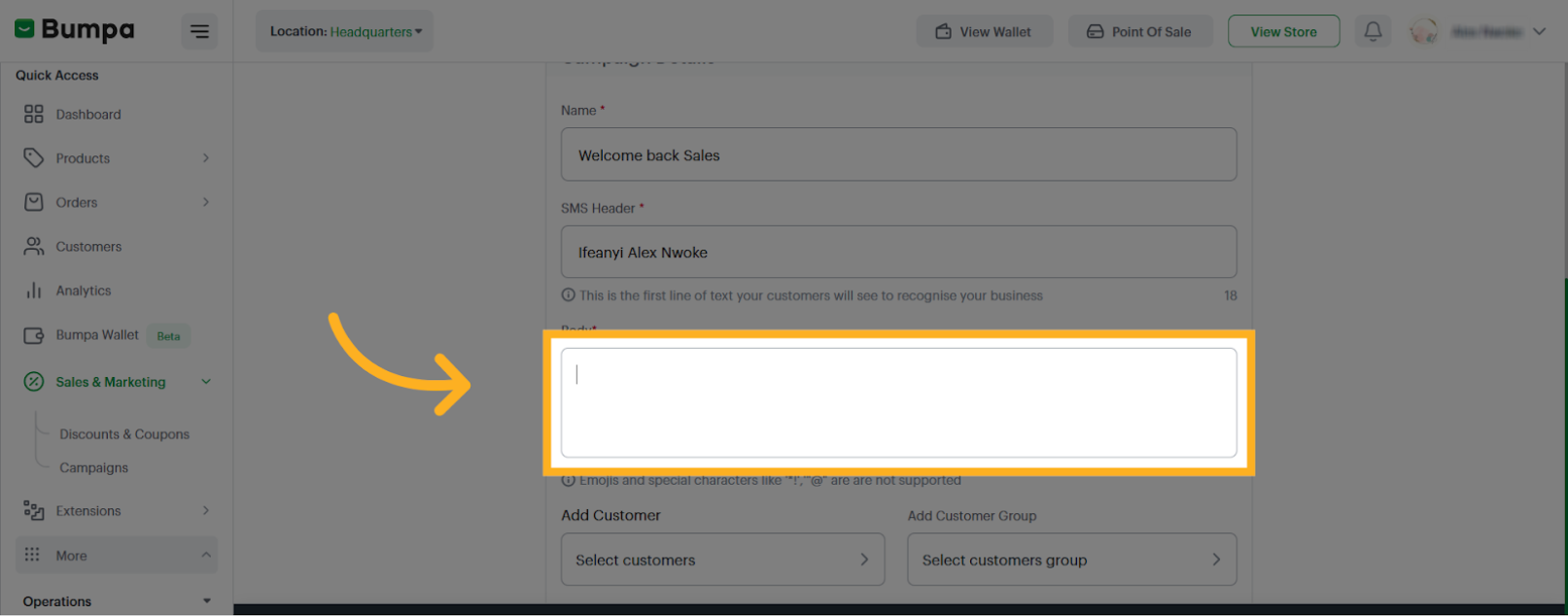
- Input the Message Content
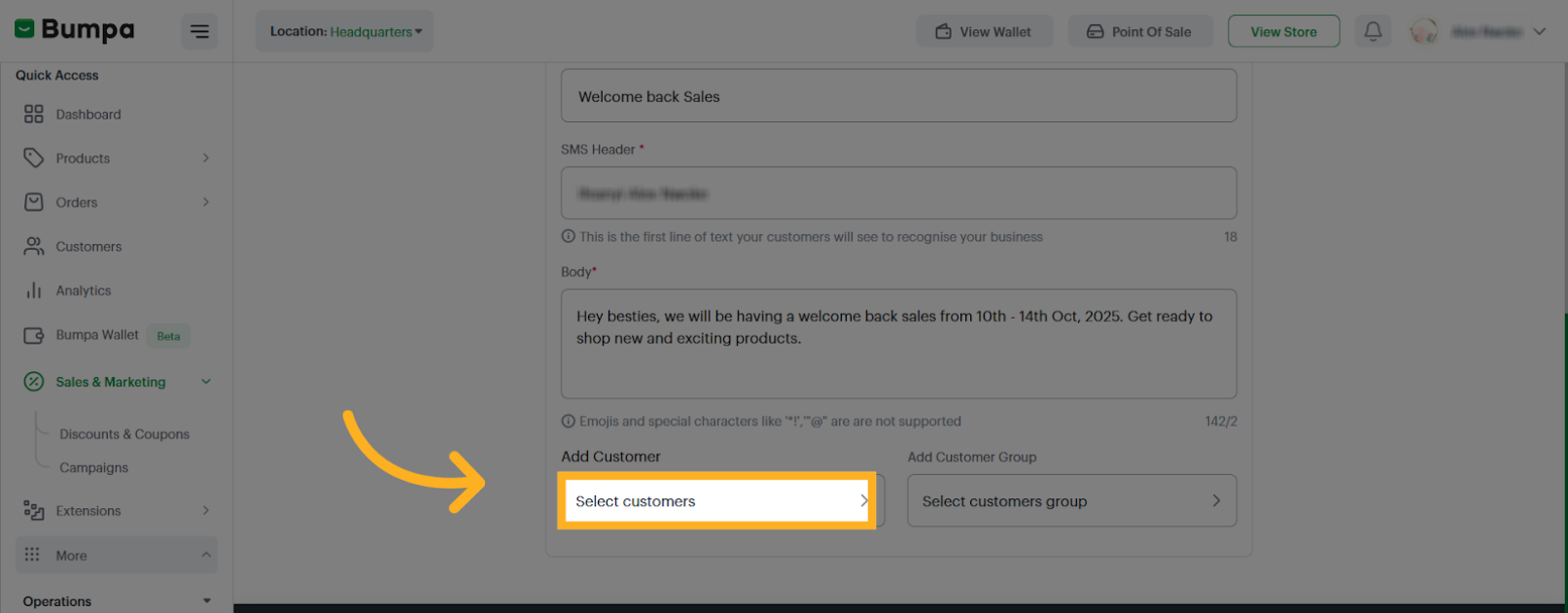
- Click on Customers
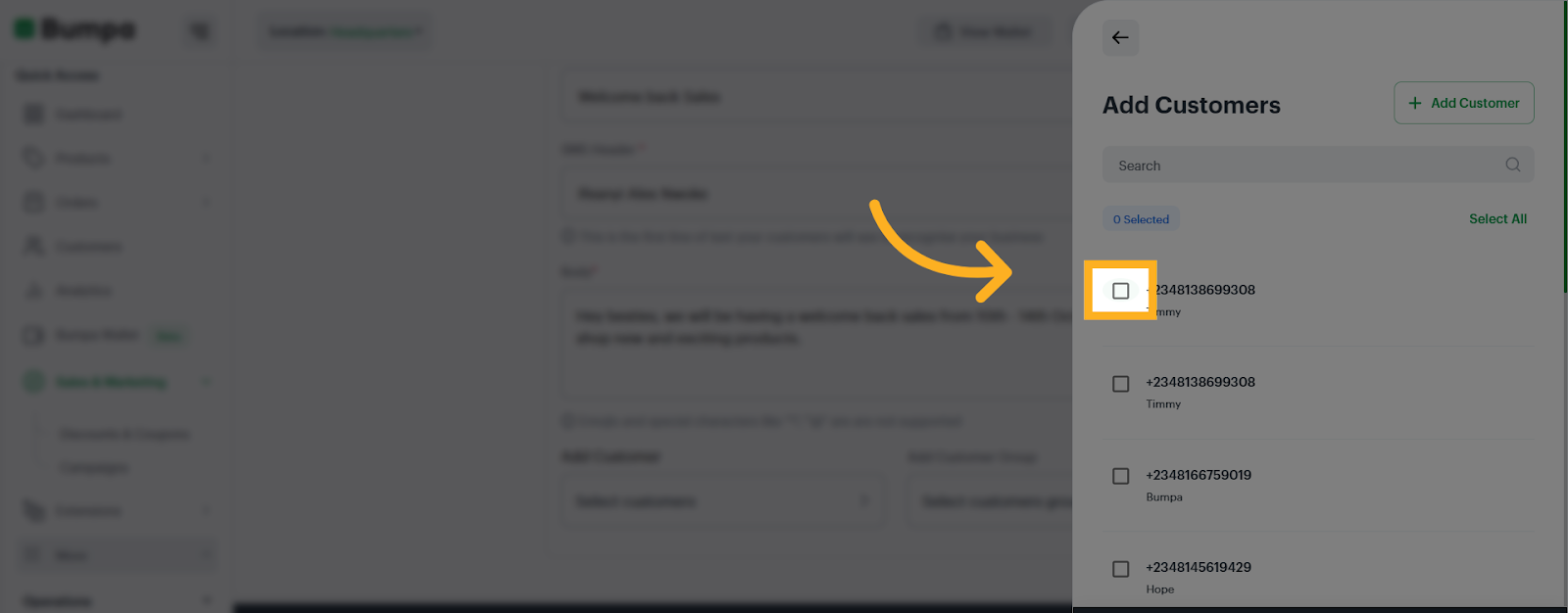
- Select the customer(s)
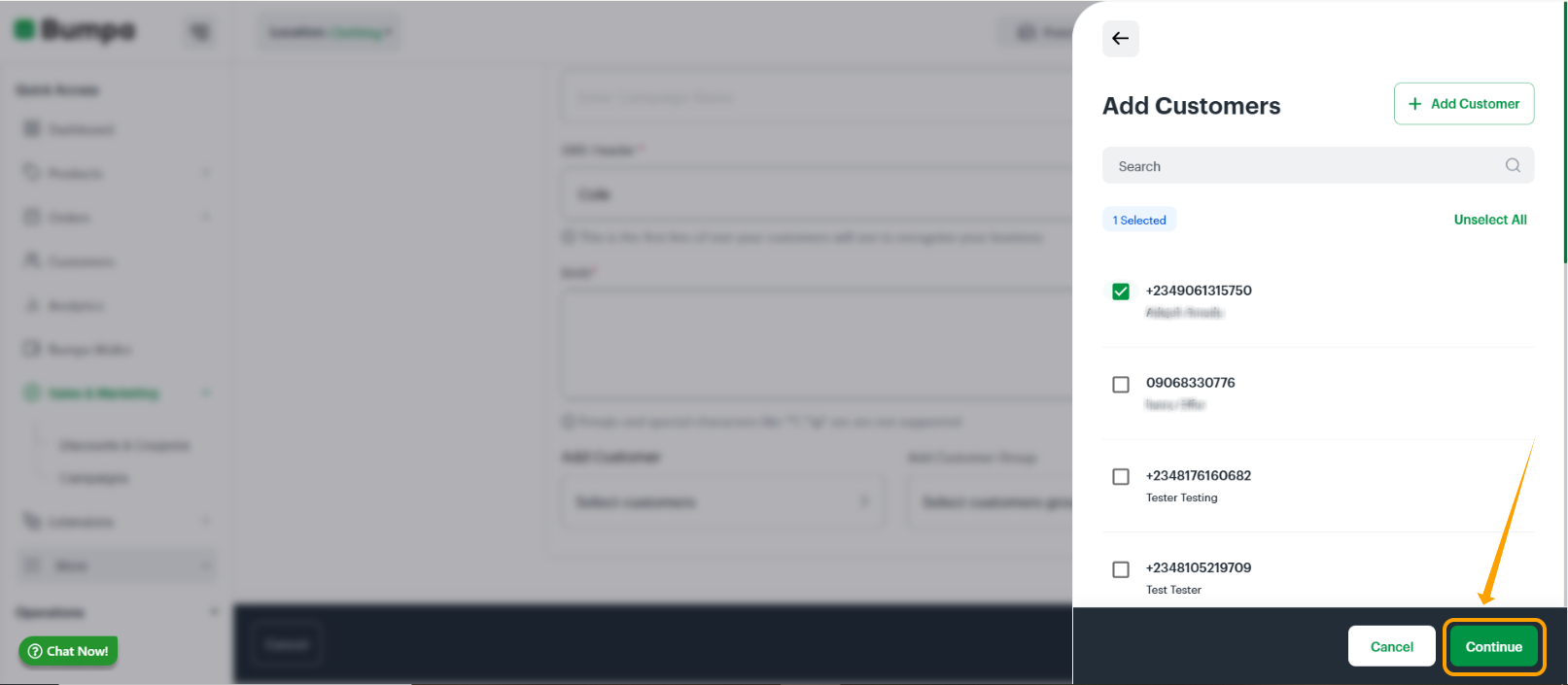
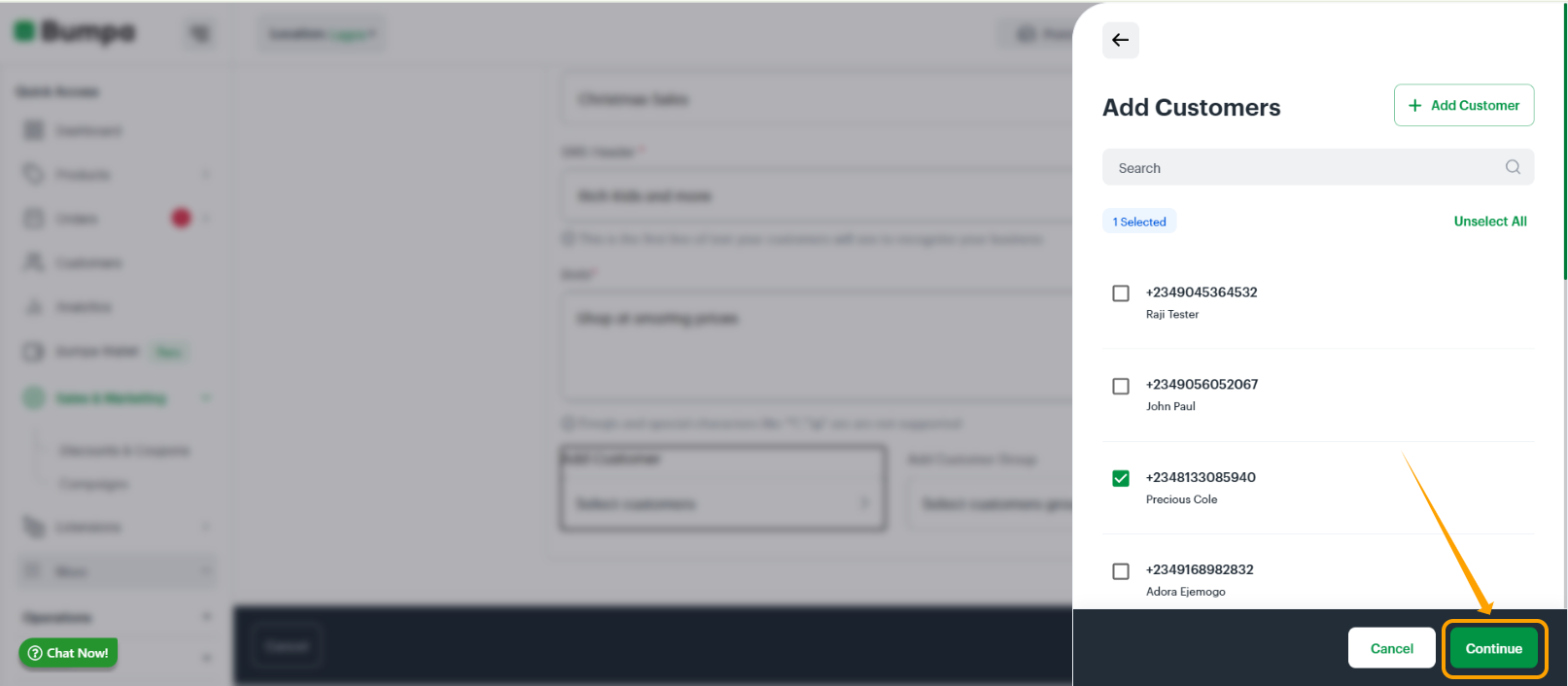
- Click on Continue
- You can Choose to send the SMS to a Customer Group
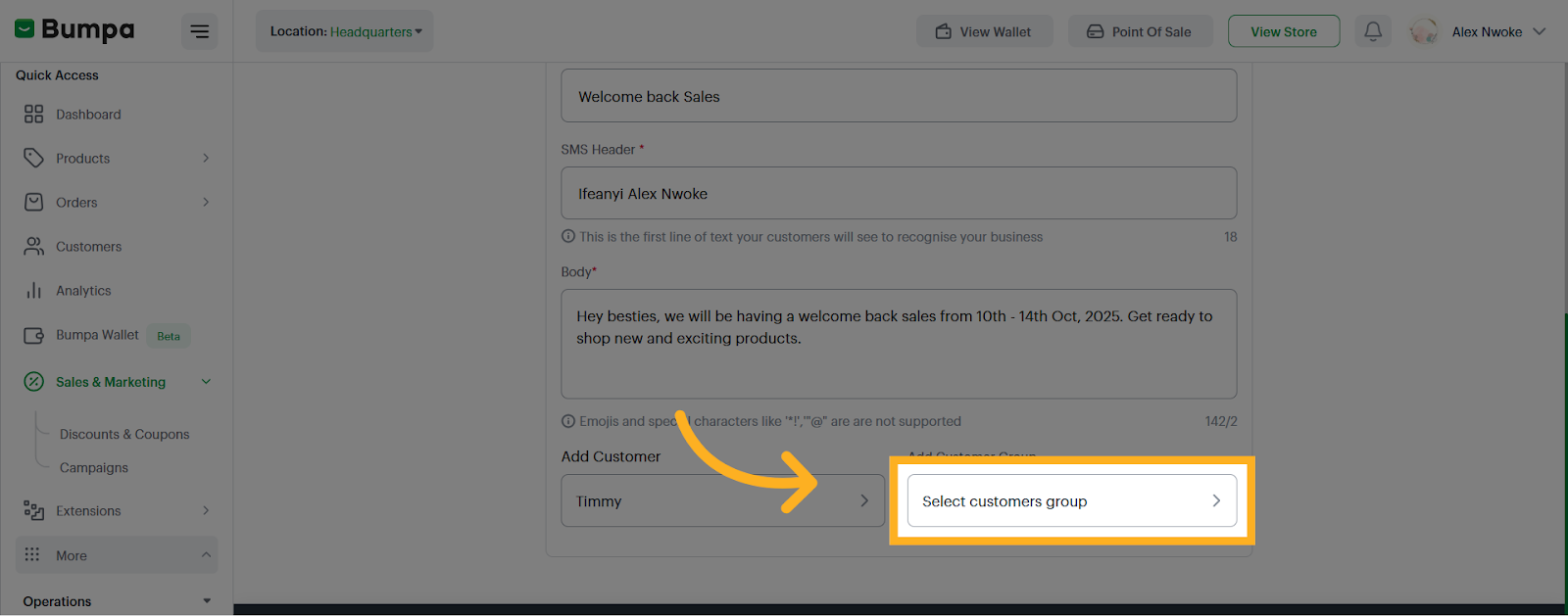
- Select Specific Customer Group
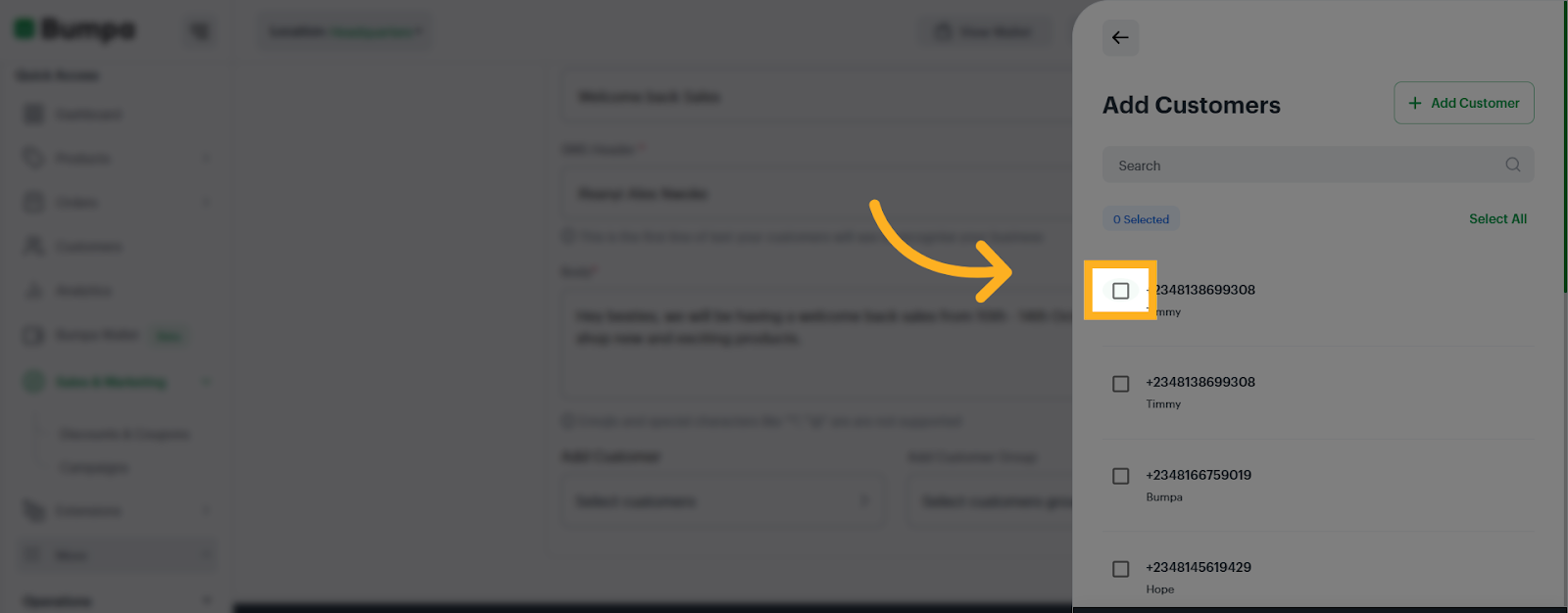
- Continue Campaign Setup
- Customers without phone number will be excluded from the customer group

- Proceed to Campaign Review
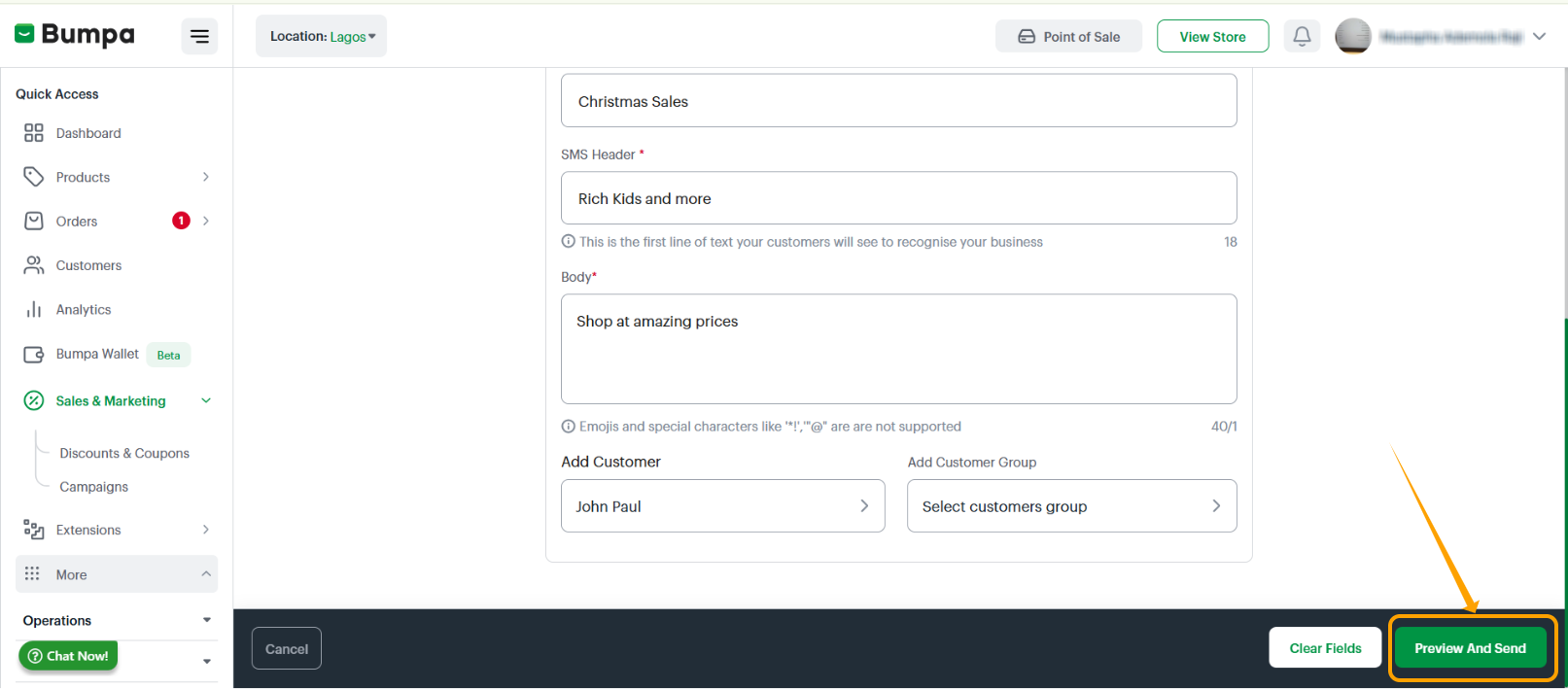
- Send SMS Campaign

SMS Campaign costs 8 messaging creditsRelated Articles
Purchasing Messaging Credits
How To Send Email To The Newsletter Subscribers
Was this article helpful?
That’s Great!
Thank you for your feedback
Sorry! We couldn't be helpful
Thank you for your feedback
Feedback sent
We appreciate your effort and will try to fix the article