As a business owner, you may need your product list outside Bumpa, for your records or to share with your team. The Export option on the Products page sends your products to your email as a CSV file. In this article, learn how to export all your products or only the products you select.
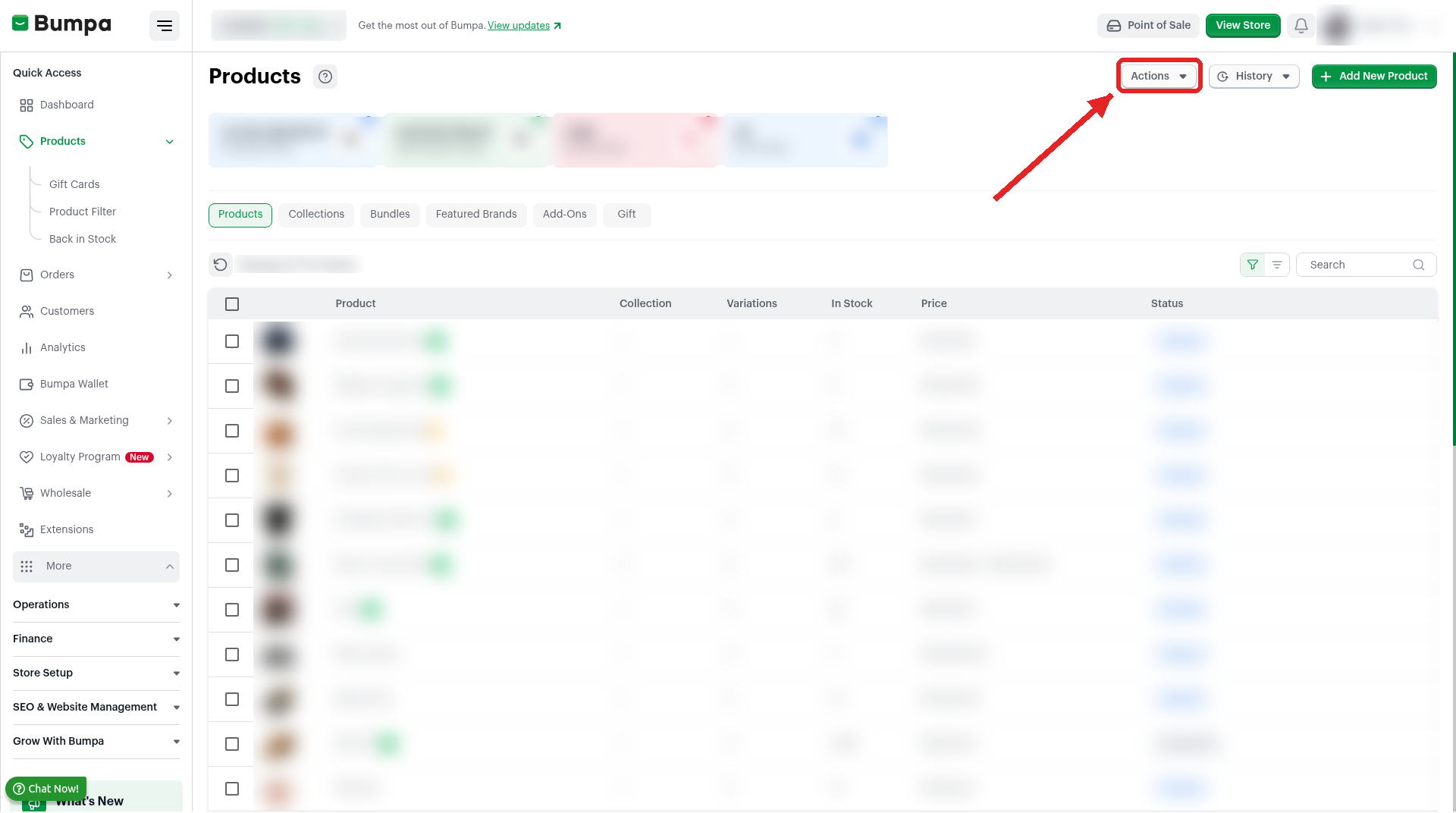
The Export option is in the Actions menu on the Products page.
To export all your products, follow these steps:
Log in to your Bumpa dashboard at app.getbumpa.com
Click Products in the menu on the left.
Click Actions at the top right.
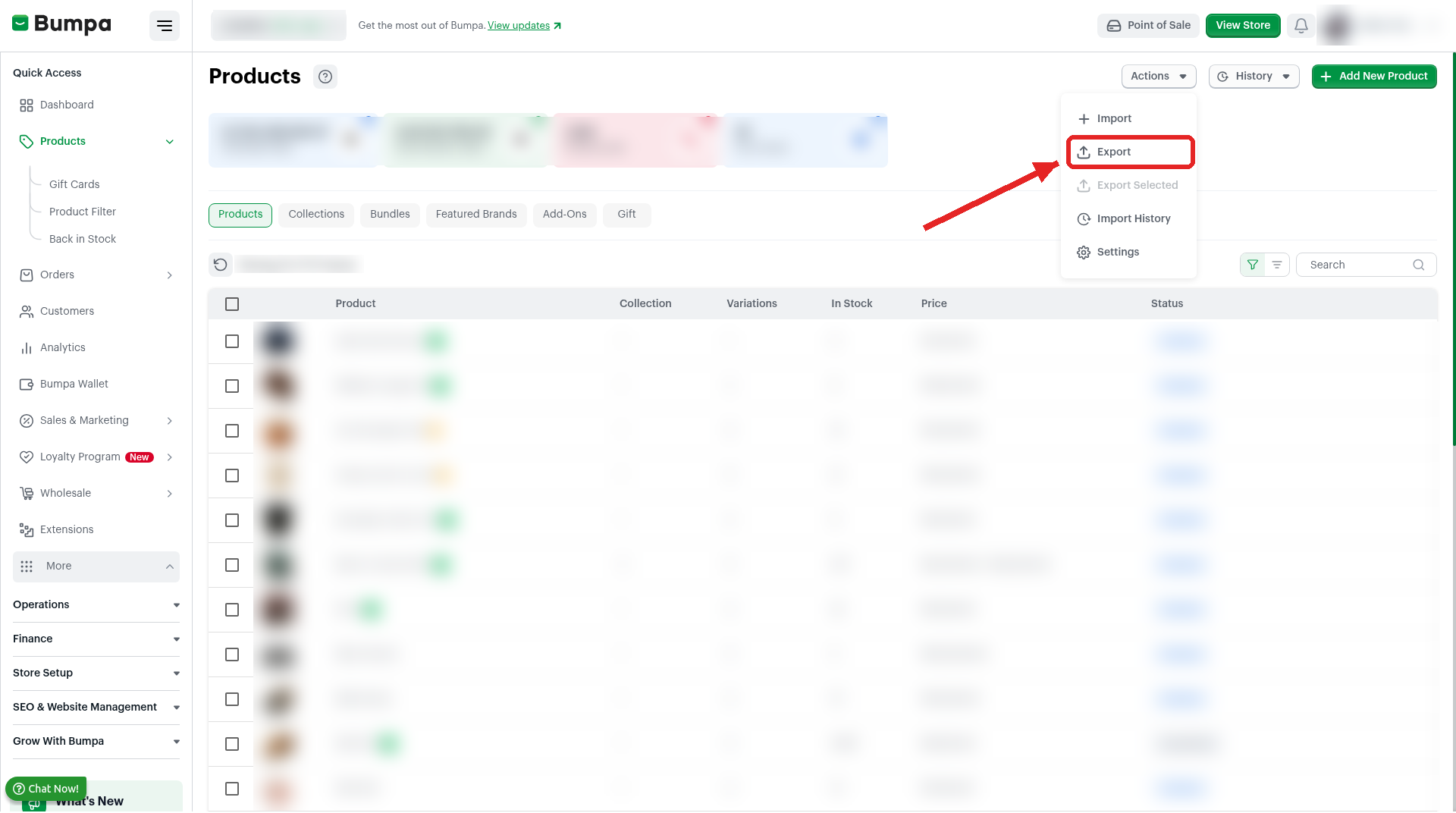
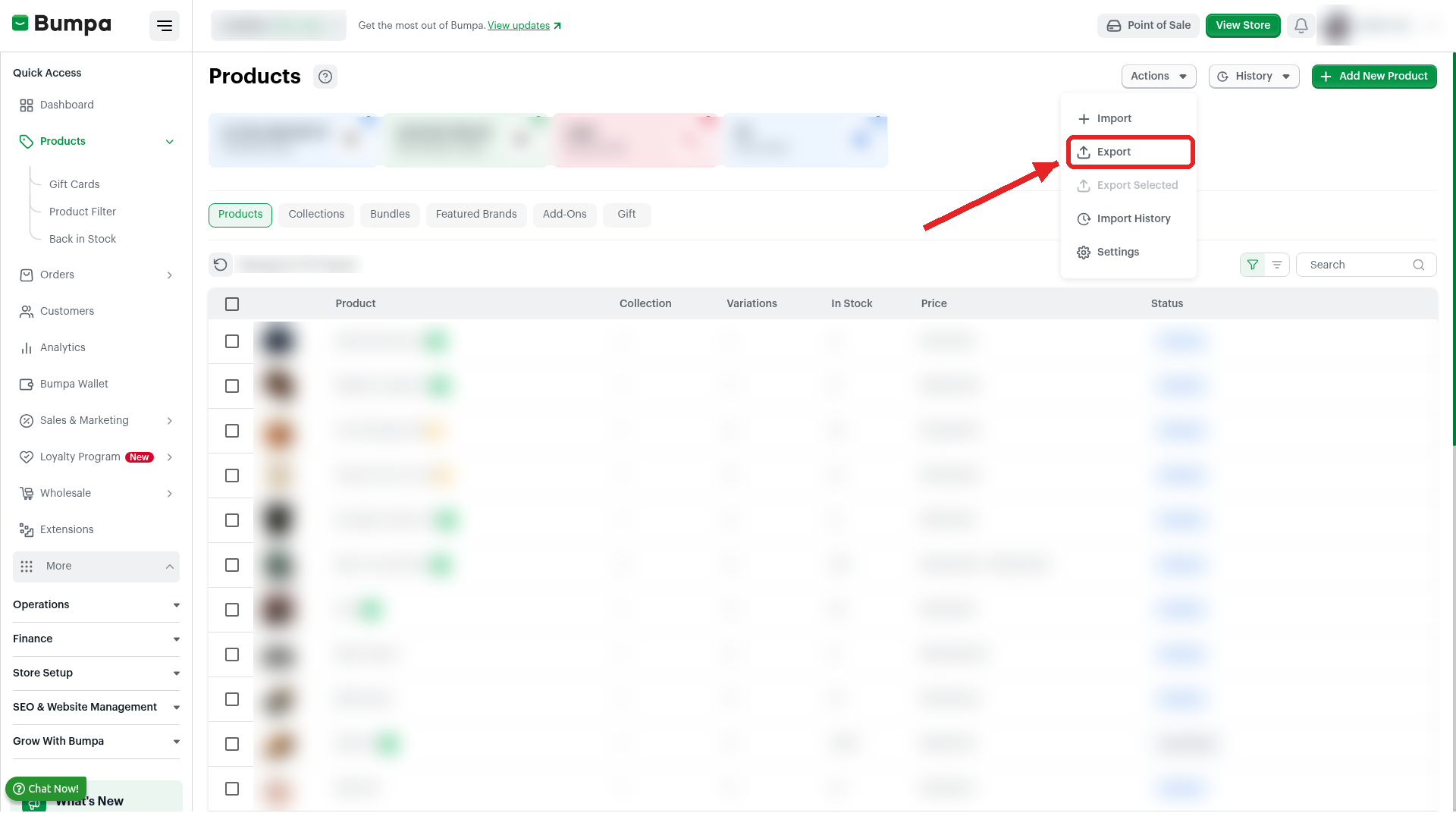
- Click Export.
- Click Yes, Download in the Download all products box.
- Read the Export CSV Complete message, then click Close.
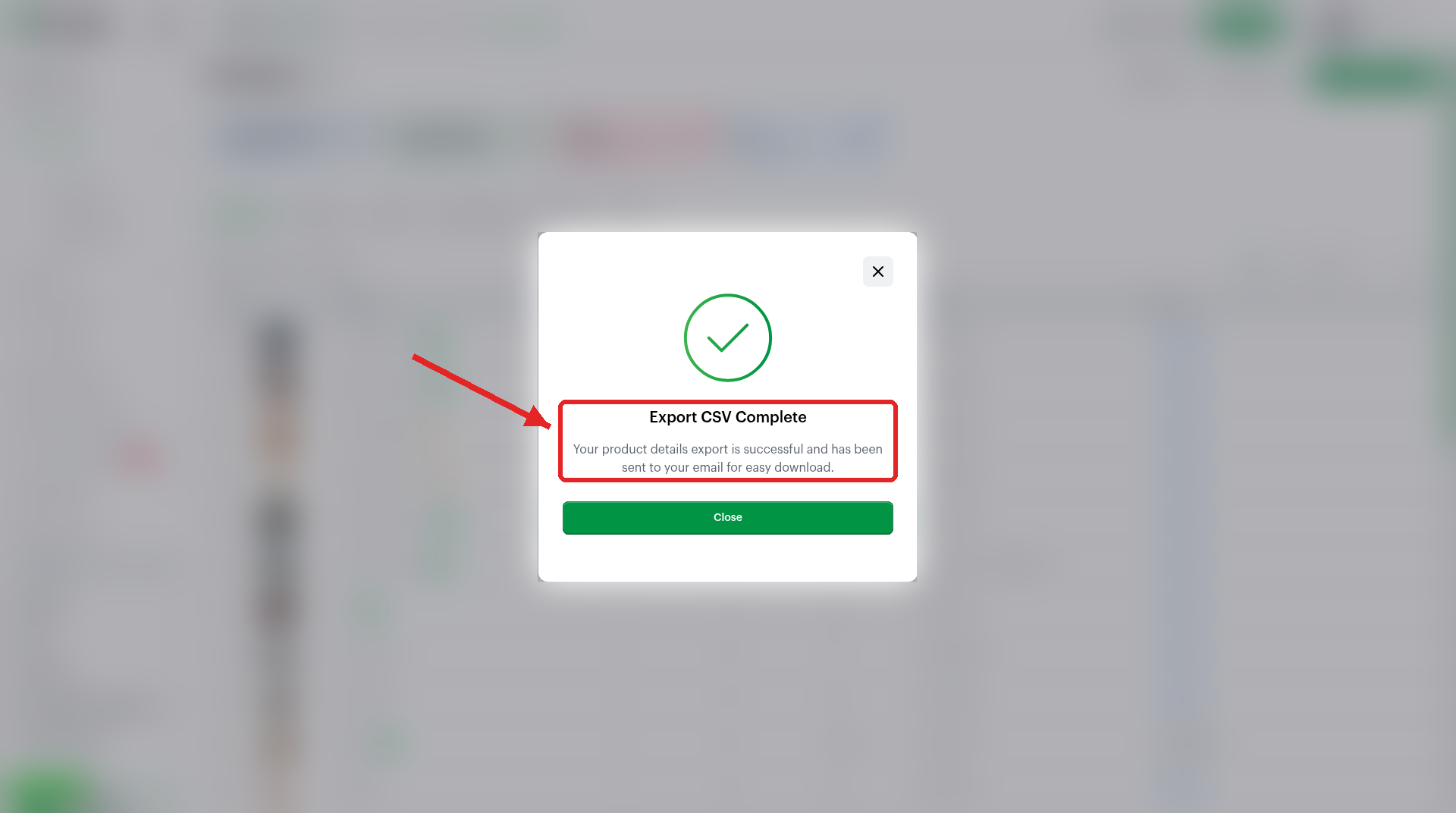
Note: Bumpa does not download the file to your computer. It sends the CSV file to your registered email. The message says: "Your product details export is successful and has been sent to your email for easy download." If you do not see the email, check your spam or promotions folder.Export selected products
Use Export Selected when you only need some of your products. Tick the products first, then export them.
To export selected products, follow these steps:
Click Products in the menu on the left.
Tick the box next to each product you want to export.
Click Actions at the top right.
Click Export Selected.
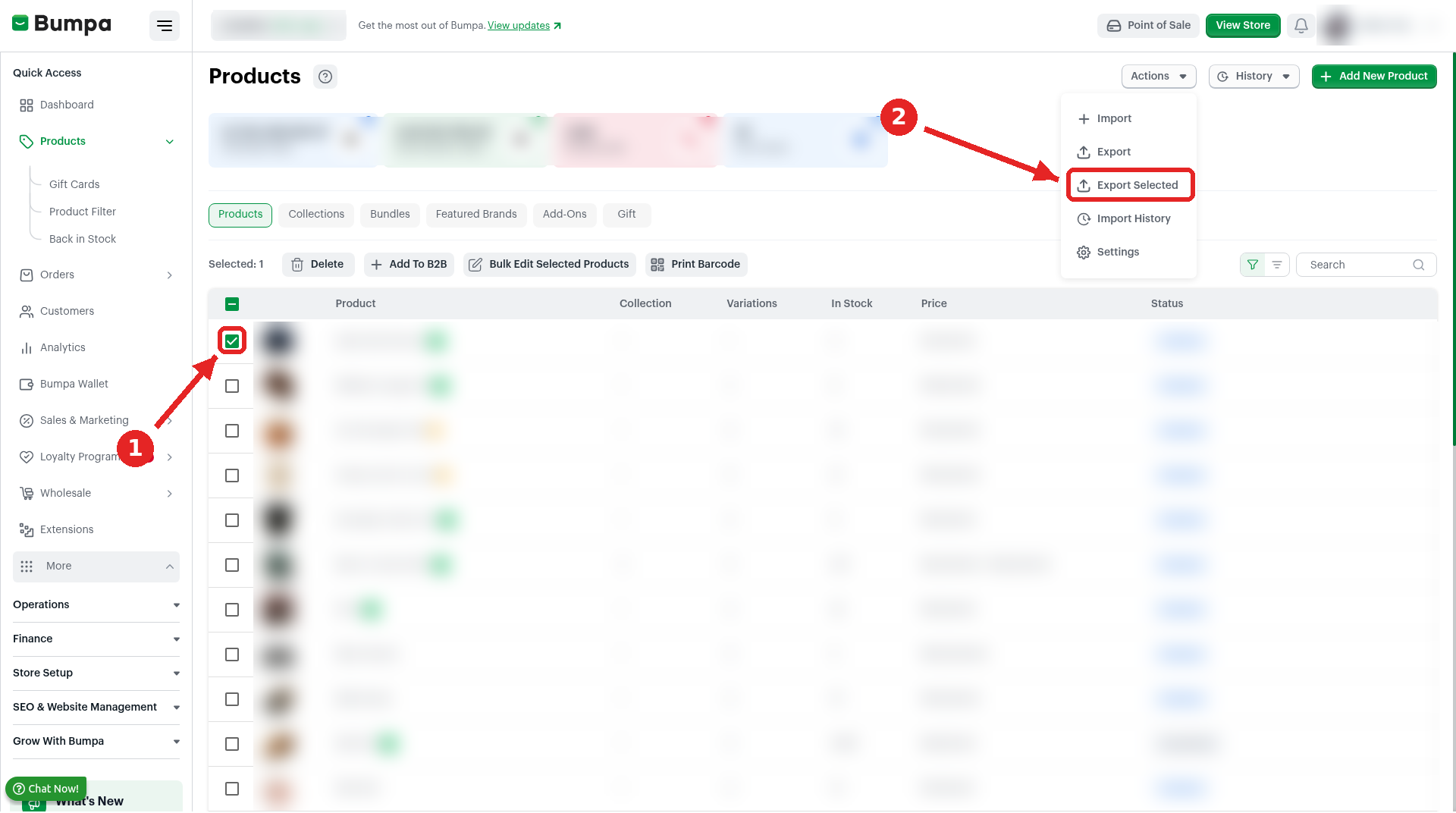
- Click Yes, Download in the Download selected products box.
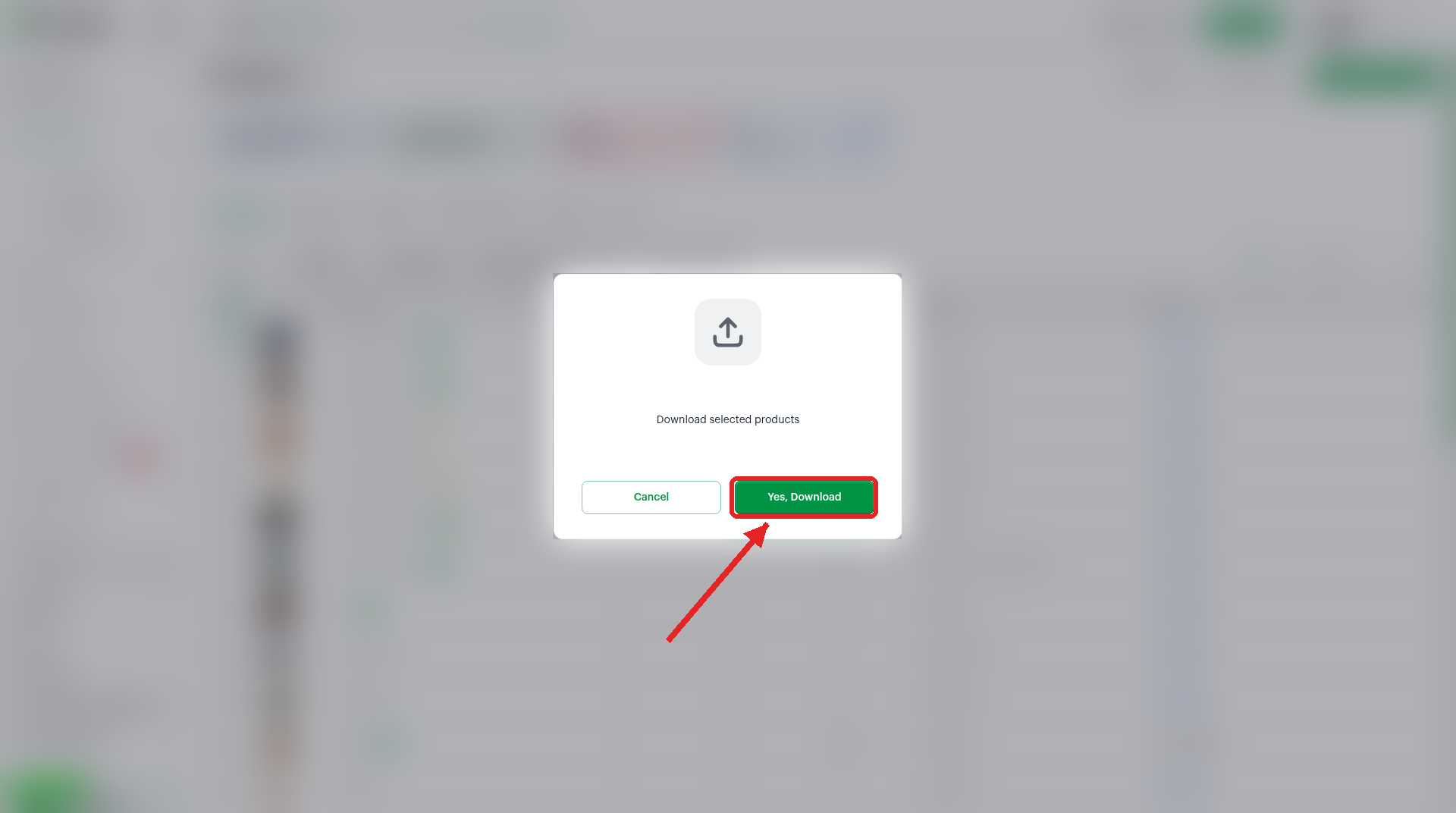
- Open your email to get the CSV file.
Related articles:
Importing Products to Bumpa (Automated),
Was this article helpful?
That’s Great!
Thank you for your feedback
Sorry! We couldn't be helpful
Thank you for your feedback
Feedback sent
We appreciate your effort and will try to fix the article